External Warehouse Connector Configuration
The External Warehouse Connector Configuration page in D365 F&O allows you to manage settings and parameters for external warehouse integrations. These settings ensure proper communication and data exchange between Dynamics 365 and external warehouse systems.
Key Sections and Parameters
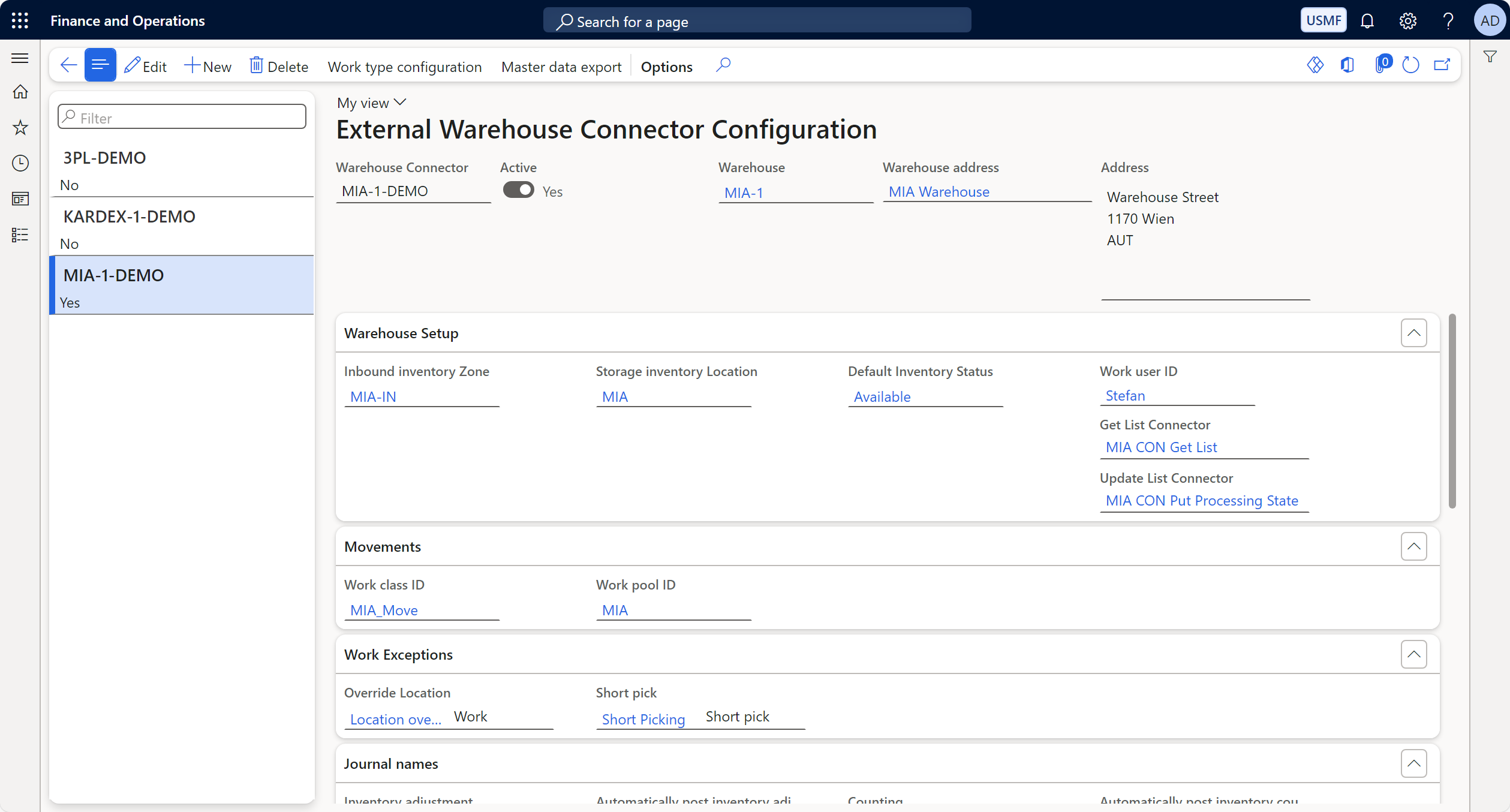
General Information
- Warehouse Connector: The name of the warehouse connector (e.g.,
3PL-DEMO). - Active: Indicates whether the connector is active (
YesorNo). - Warehouse: Specifies the warehouse number.
- Warehouse Address: The name or location of the warehouse.
- Address: The physical address of the warehouse.
Warehouse Setup
- Inbound Inventory Zone: Specifies the inventory zone for incoming items (e.g.,
3PL-IN). - Storage Inventory Location: The location where inventory is stored (e.g.,
3PL-Blackb). - Default Inventory Status: Sets the default status of inventory (e.g.,
Available). - Work User ID: Identifies the user responsible for the work.
Movements
- Work Class ID: The ID of the work class (e.g.,
3PL_Move). - Work Pool ID: Specifies the work pool associated with the warehouse (e.g.,
3PL).
Work Exceptions
- Override Location: Specifies a location to override during work execution.
- Short Pick: Indicates the handling of short picks (e.g.,
Short Picking).
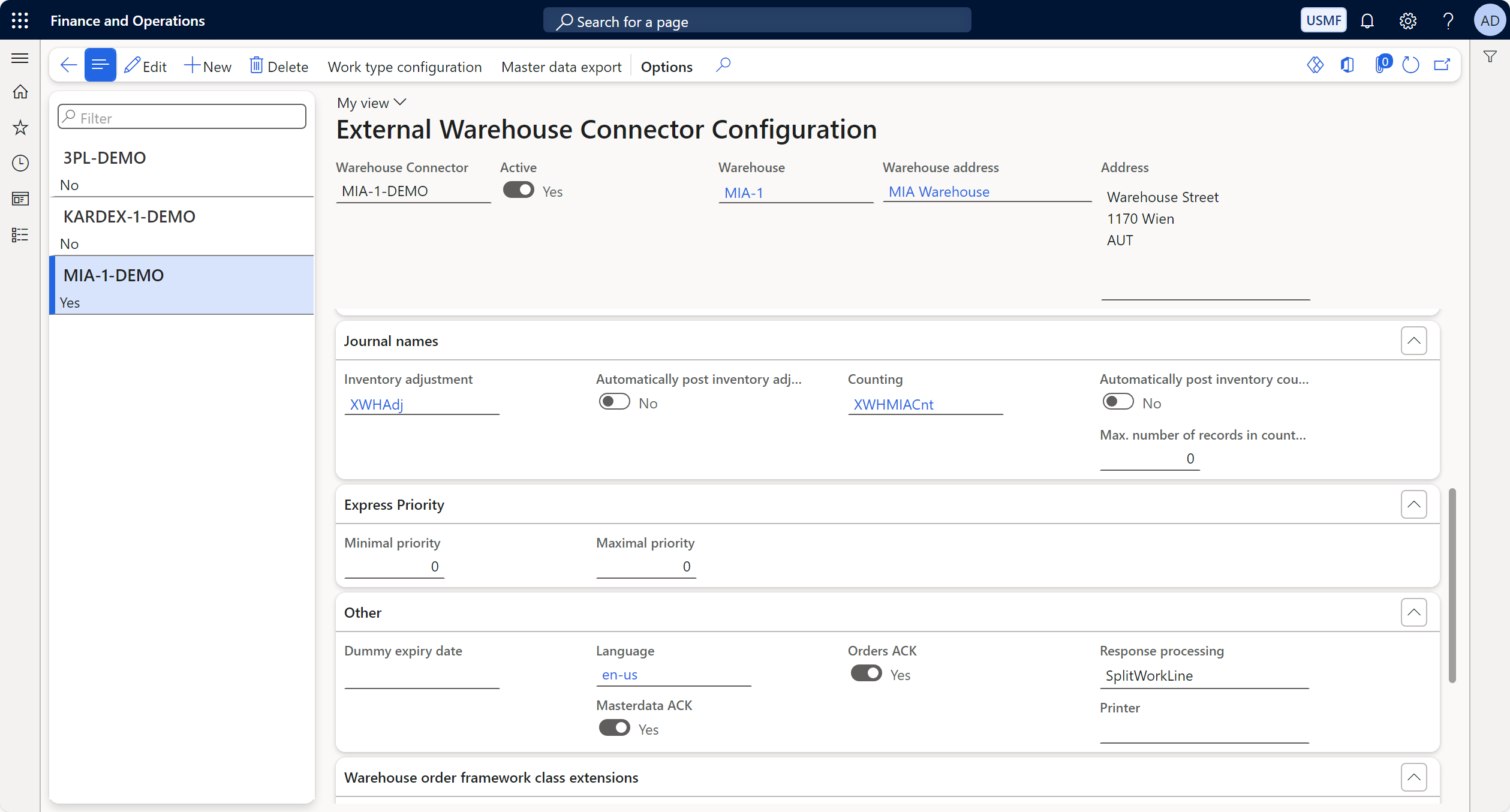
Journal Names
- Inventory Adjustment: The journal name used for inventory adjustments (e.g.,
XWHAdj). - Automatically Post Inventory Adjustments: Toggle to enable or disable automatic posting.
- Counting: Specifies the journal name for inventory counting (e.g.,
XWHMIACnt). - Automatically Post Inventory Counting: Toggle to enable or disable automatic posting for inventory counting.
- Max. Number of Records in Count: Sets the maximum number of records to include in a single counting journal.
Express Priority
- Minimal Priority: Defines the minimal priority for processing external warehouse orders as "High priority".
- Maximal Priority: Defines the maximal priority for processing external warehouse orders as "High priority".
Other Settings
- Dummy Expiry Date: Sets a placeholder expiry date.
- Language: Specifies the language.
- Masterdata ACK: Indicates whether master data acknowledgments are required. If set to
Yes, master data exports will remain in the statusIn processuntil the acknowledgment is received. Otherwise the status will be set toProcessedafter exporting. - Orders ACK: Indicates whether order acknowledgments are required. If set to
Yes, Orders wremain in the statusIn processuntil the acknowledgment is received.. Otherwise the status will be set toProcessedafter exporting the order. - Response Processing: Specifies the class used for processing responses (possible values are
SplitWorkLineandCollectResponseLines). - Printer: The default printer used for printing a work report.
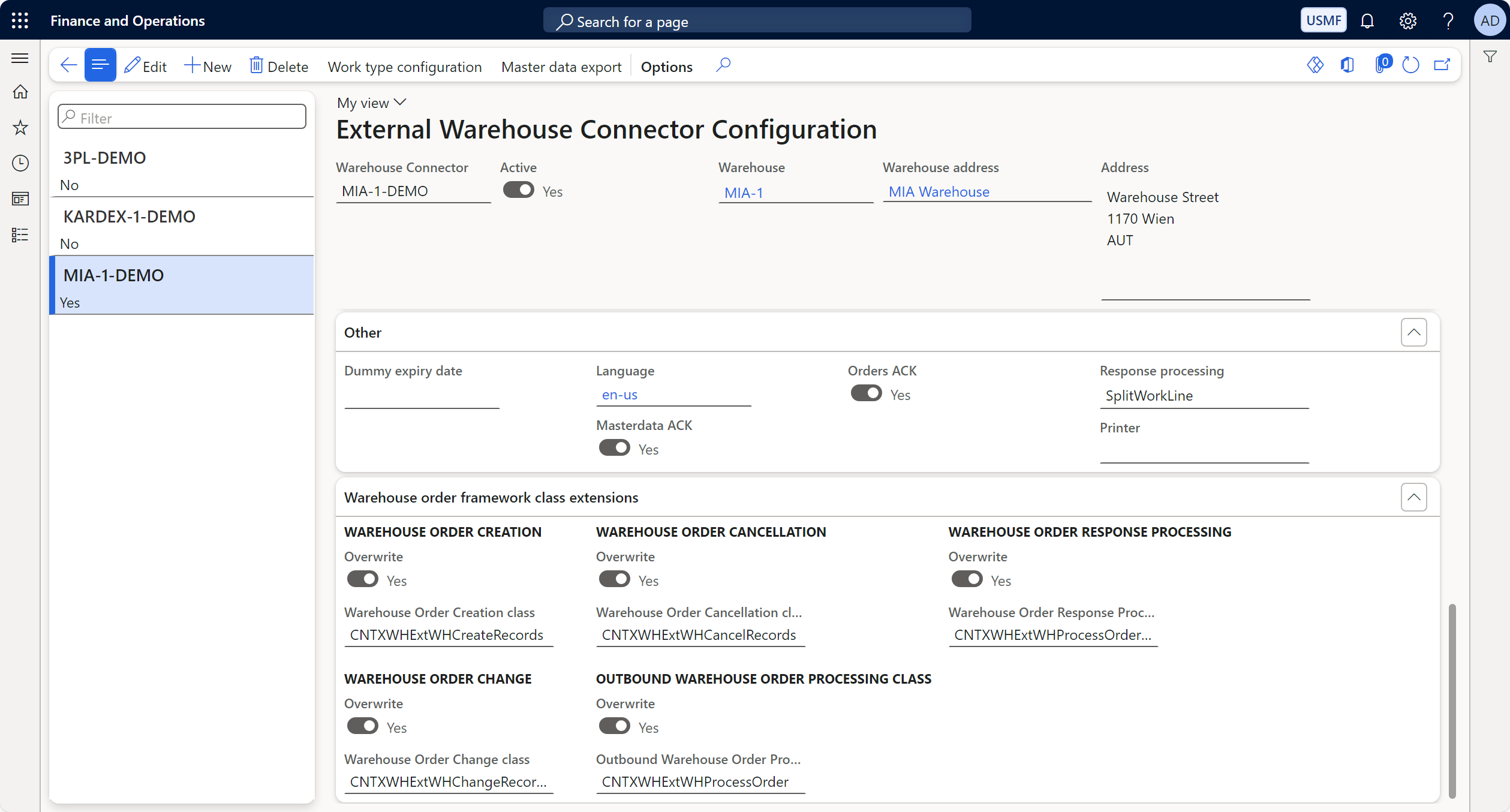
Warehouse Order Framework Class Extensions
-
Warehouse Order Creation
- Overwrite: Toggle to enable or disable overwriting the default behavior.
- Warehouse Order Creation Class: Specifies the class used for warehouse order creation (e.g.,
CNTXWHExtWHCreateRecords).
-
Warehouse Order Change
- Overwrite: Toggle to enable or disable overwriting the default behavior.
- Warehouse Order Change Class: Specifies the class used for warehouse order changes (e.g.,
CNTXWHExtWHChangeRecords).
-
Warehouse Order Cancellation
- Overwrite: Toggle to enable or disable overwriting the default behavior.
- Warehouse Order Cancellation Class: Specifies the class used for warehouse order cancellations (e.g.,
CNTXWHExtWHCancelRecords).
-
Outbound Warehouse Order Processing Class
- Overwrite: Toggle to enable or disable overwriting the default behavior.
- Outbound Warehouse Order Processing Class: Specifies the class used for outbound order processing (e.g.,
CNTXWHExtWHProcessOrder).
-
Warehouse Order Response Processing
- Overwrite: Toggle to enable or disable overwriting the default behavior.
- Warehouse Order Response Processing Class: Specifies the class used for processing warehouse order responses (e.g.,
CNTXWHExtWHProcessOrder).
Warehouse Connector -> Setup -> External Warehouse Connector Configuration
Work Type Configuration
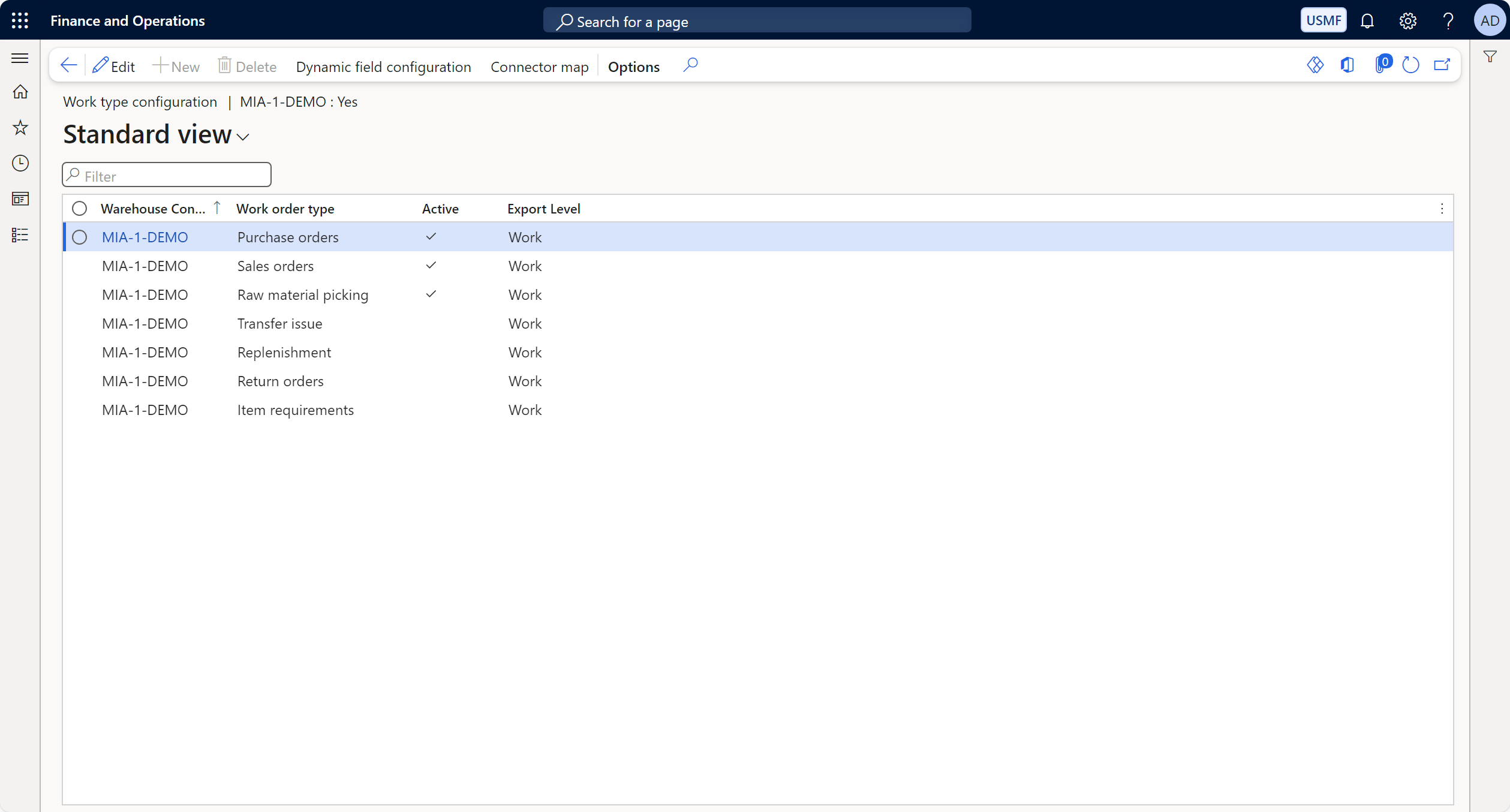
The Work Type Configuration page in D365 F&O allows users to define the types of work orders managed by the external warehouse connectors.
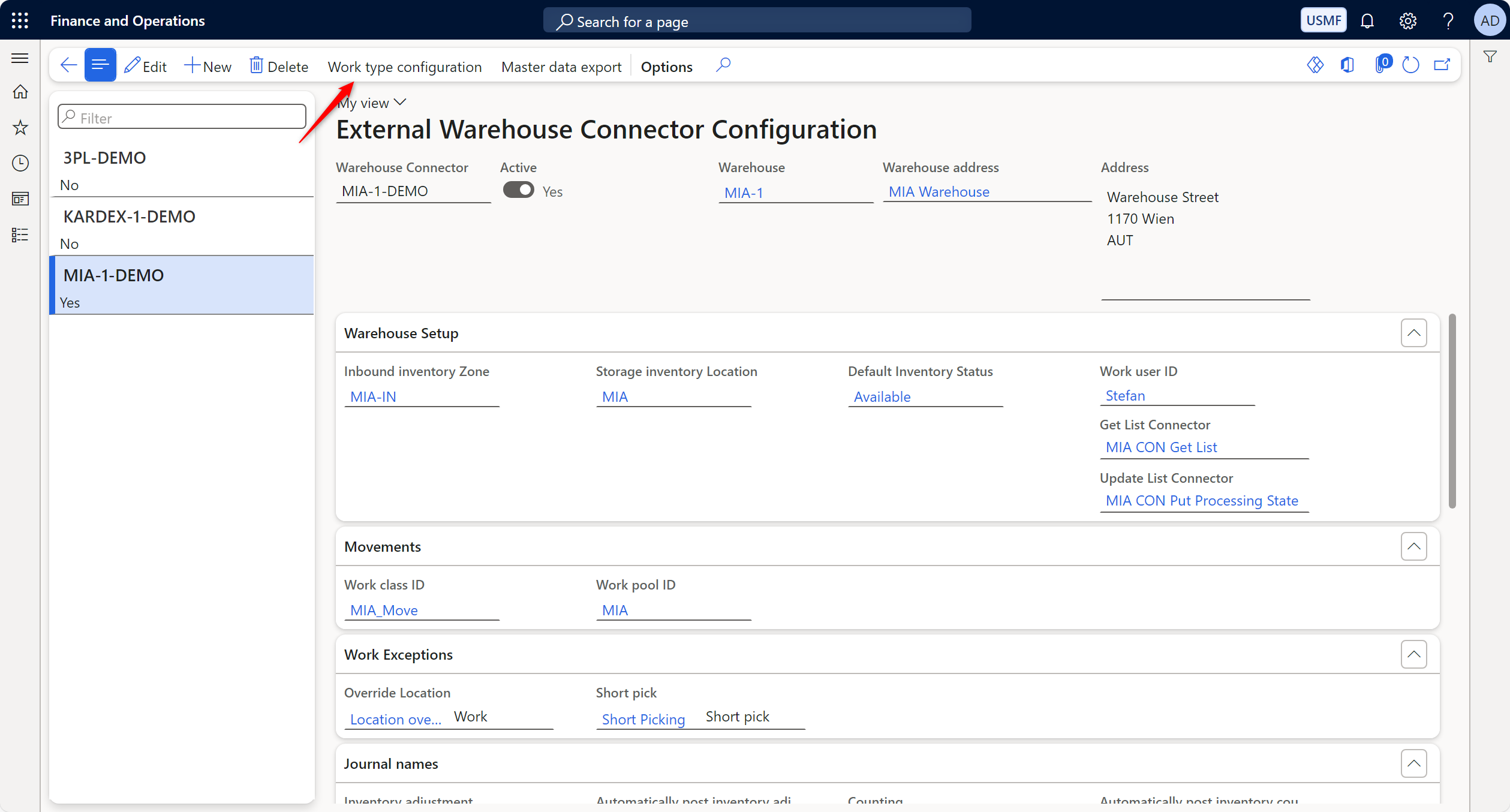
Key Parameters
- Warehouse Connector: The external warehouse connector being configured (e.g.,
3PL-DEMO). - Work Order Type: Specifies the type of work order (e.g., Purchase Orders, Sales Orders, etc.).
- Active: Indicates if the work type is active for the connector.
- Export Level: Defines the export granularity (e.g.,
Purchase Order,Shipment, orWork).
Dynamic Field Configuration
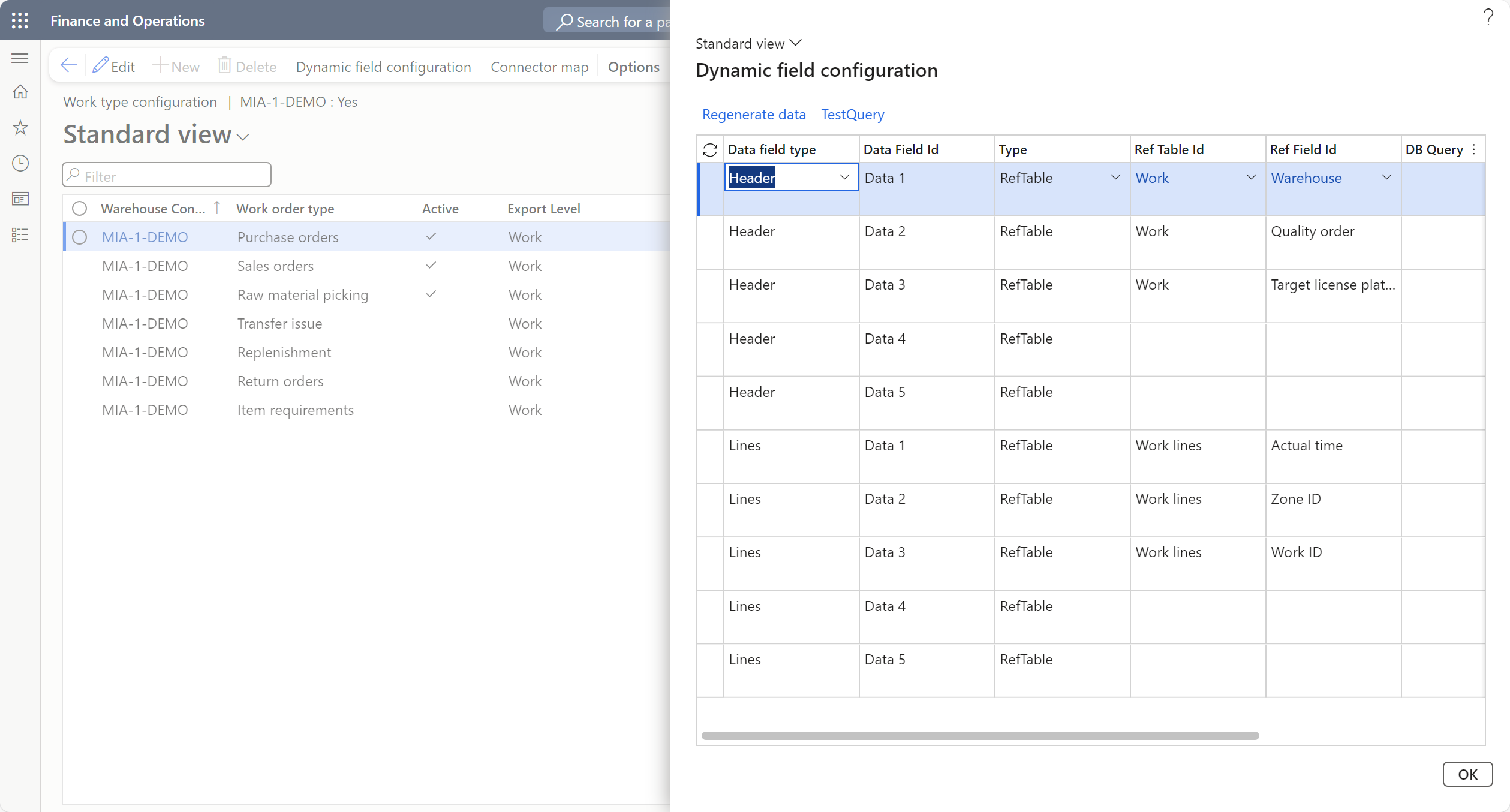 The Dynamic Field Configuration page provides flexibility to map and manage data fields for work orders and related processes.
Key Columns
- Data Field Type: Specifies if the field is associated with a
HeaderorLines. - Data Field ID: The identifier for the specific data field.
- Type: Indicates the type of field mapping (e.g.,
RefTable). - Ref Table ID: The reference table associated with the field (e.g.,
Purchase Orders). - Ref Field ID: The field within the reference table (e.g.,
CurrencyorDelivery Terms). - DB Query: Specifies if the data field involves a query.
Connector Mapping
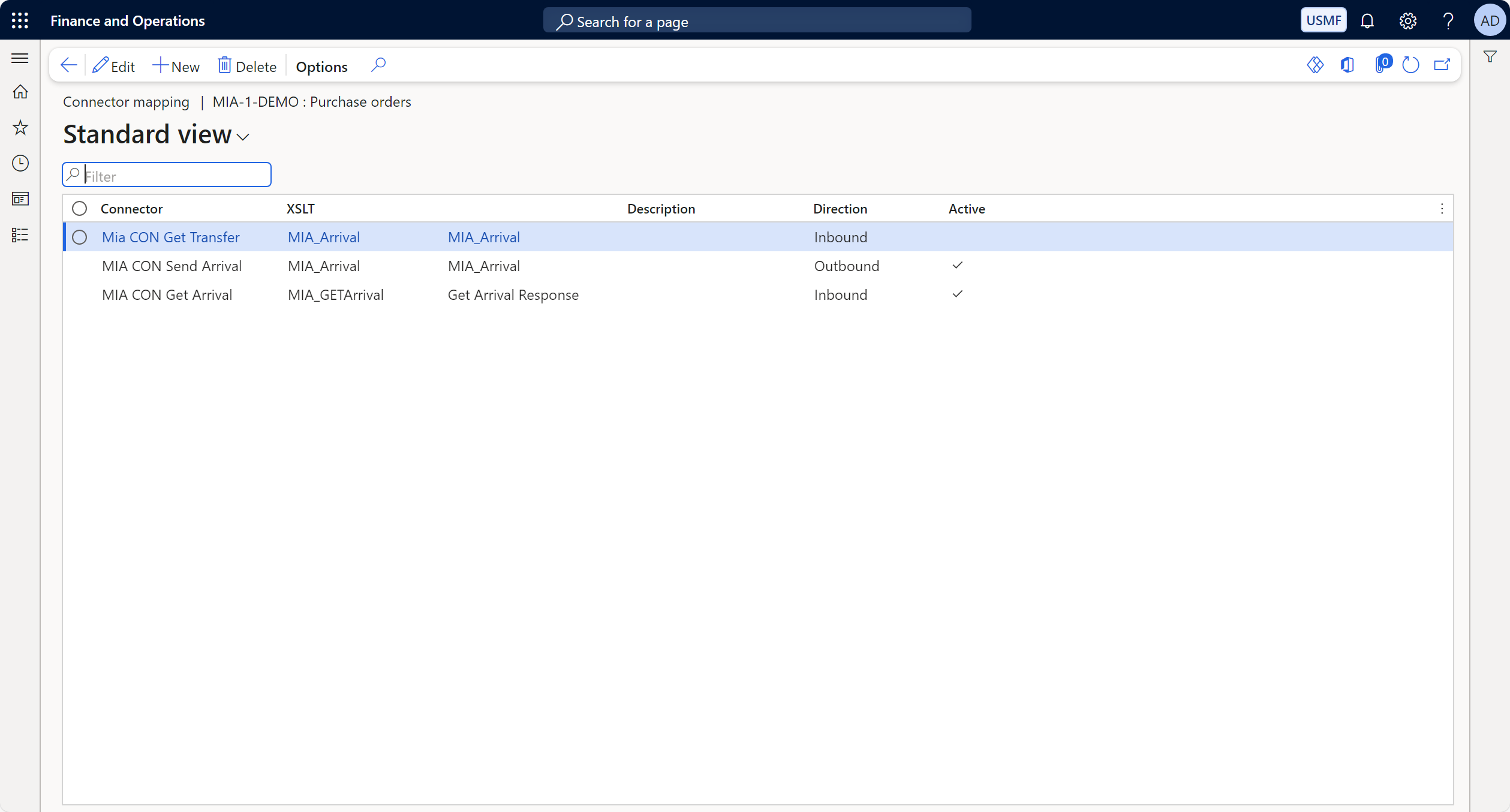 The Connector Mapping page in D365 F&O manages the XSLT transformations and directions for data flow between the system and the external warehouse.
Key Parameters
- Connector: The external connector (e.g.,
Mia CON Get Transfer). - XSLT: Specifies the XSLT file for data transformation (e.g.,
MIA_Arrival). - Description: A brief description of the mapping.
- Direction: Defines the direction of the data flow (
InboundorOutbound). - Active: Indicates if the mapping is active.
Master Data Export
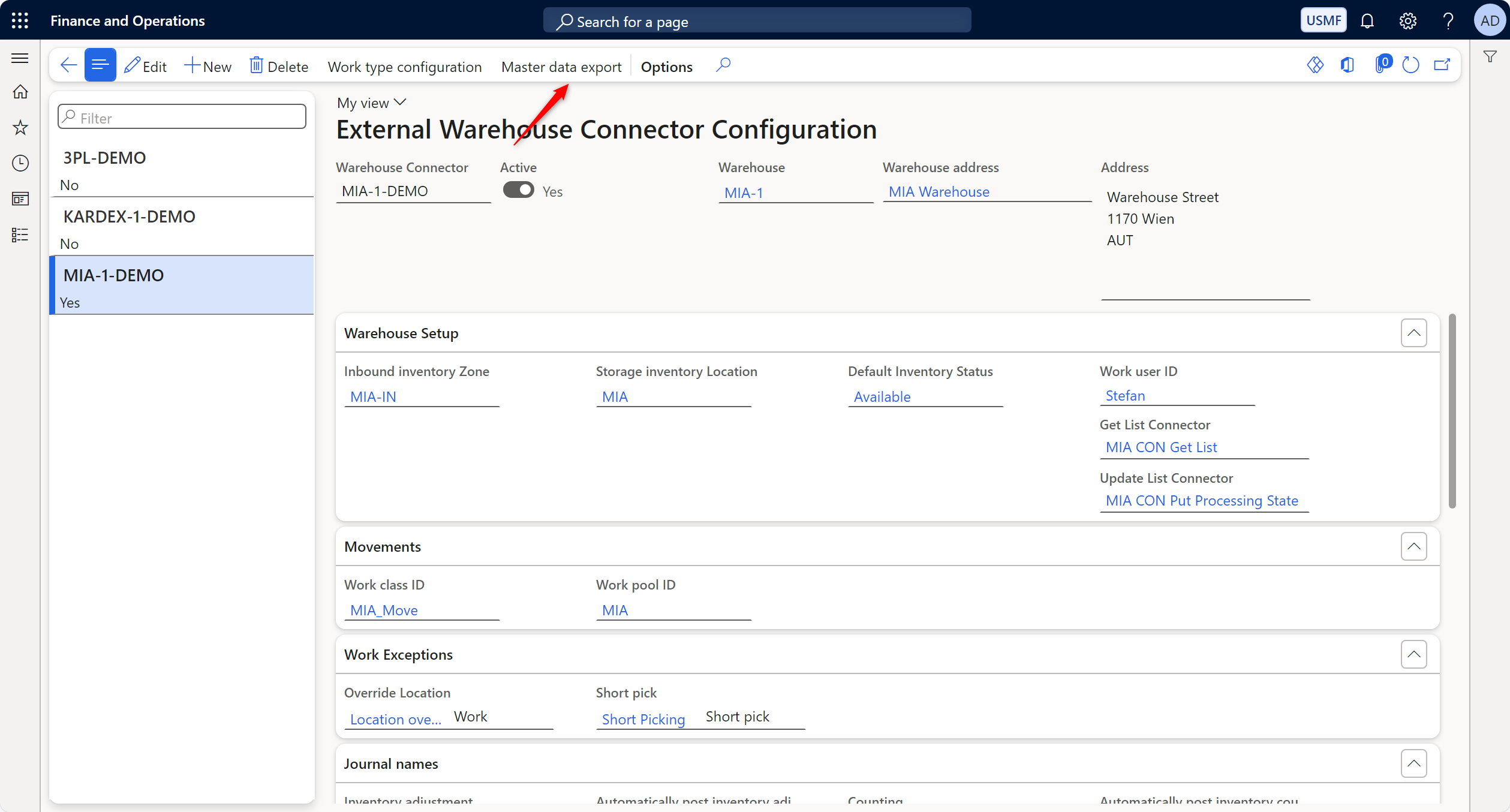
The Master Data Export page facilitates exporting master data such as items, customers, or vendors from D365 F&O to external warehouse systems.
Key Columns
- Warehouse Connector: The connector associated with the export (e.g.,
MIA-1-DEMO). - Master Data Type: Specifies the type of master data being exported (e.g., Items, Customers, Vendors).
- Data Management Project: The data project name for the export (e.g.,
MIAMasterData). - Connector: Specifies the connector handling the export (e.g.,
MIA CON Send Items). - XSLT: The XSLT file used for data transformation (e.g.,
MasterDataItems2JSON). - Master Data Provider Class: The provider class handling the export (e.g.,
CNTXWHMasterDataProvider_DataManagement).
Example Master Data Exports
-
Items:
- Data Project:
MIAMasterData - Connector:
MIA CON Send Items - XSLT:
MasterDataItems2JSON - Provider Class:
CNTXWHMasterDataProvider_DataManagement
- Data Project:
-
Customers:
- Data Project:
MIACustomers - Connector:
MIA CON Send Customers - XSLT:
MasterDataCustomer2JSON - Provider Class:
CNTXWHMasterDataProvider_DataManagement
- Data Project:
-
Vendors:
- Data Project:
MIAVendors - Connector:
MIA CON Send Vendors - XSLT:
MasterDataVendors2JSON - Provider Class:
CNTXWHMasterDataProvider_DataManagement
- Data Project: